

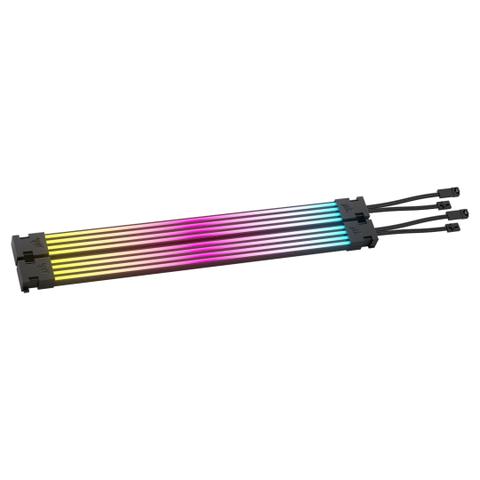

Corsair iCUE ARGB PSU Cable Strips
Buy at PC Case GearWe may earn a commission if you buy; it doesn't change your price. Check the price at PC Case Gear before you buy. How we make money
Price history
Tracking since today
The price hasn't changed since we started tracking it. We'll show its history once it does.
Available at 3 stores
Stores may pay us a commission when you buy; it doesn't affect the order or your price. Learn more
- PC Case Gear This page $78 Cheapest In stock Checked todayBuy
- Mwave $89 In stock Checked 3 days ago Buy
- PLE $89 In stock Checked yesterday Buy


About this product
- Brand
- Corsair
- Store
- PC Case Gear
- Category
- Electronics > Electronics Accessories > Cables > System & Power Cables
- SKU
- CP-8920282
The Corsair iCUE ARGB PSU Cable Strips (CP-8920282) are designed to add vibrant, customisable lighting to your PC's power supply cables. Each strip features 100 individually addressable RGB LEDs, which can be controlled via Corsair's iCUE software or connected directly to a motherboard with a 5V ARGB header.
Features
Corsair RGB PSU Cable Strips
Addressable RGB Lighting for PSU Cables
A scalable design securely fits over any form-factor PSU cable, with 100 individually addressable RGB LEDs per lighting strip. Connect to any motherboard with a 5V ARGB header for fast, simple control, or unlock more advanced control by connecting to a CORSAIR iCUE controller (sold separately).
Installation Requirements
RGB PSU Cable Strips Can be Installed in Two Ways:
- With direct connection to a motherboard RGB header using the included ARGB motherboard adapter cable.
- Using an iCUE controller* (sold separately) for advanced lighting control using iCUE software.
For connecting more than two strips, the SATA Power Injector Y-cable (included) needs to be connected for optimal performance.
* Any of the Following CORSAIR iCUE Controllers are Compatible:
- iCUE Commander PRO
- iCUE Commander CORE XT
- iCUE Lightning Node PRO
Installing Your New RGB PSU Cable Strips
Warning: Before you begin, ensure your computer system is completely powered off. This means switching off the power supply unit (PSU) to avoid any electrical hazards or damage to your components.
Strips
Assess Cable Coverage
First, you need to determine how many RGB PSU Cable Strips you'll require to cover the cables adequately. This will depend on the width of the cables and your aesthetic preferences. For example, the CPU power cable can be covered with a single strip while the motherboard power cable requires multiple strips for full coverage.
Single Strip Installation
1. Unhook pre-assembled dual strips on both ends by holding the black end cap clips (H) and pulling them apart in the opposite directions.
2. Attach the black single flat (D) or round (F) end cap clips to both ends of the strip. These clips will help secure the strip to the cable.
3. (Optional) For additional stability, you can use the clear single flat (E) or round (G) clip to further secure the strip's position on the cable.

4. Use the included ARGB Motherboard adapter cable (B) to connect the PSU Cable strip's 3-pin connector to the motherboard's 4-pin RGB header.

5. Alternatively, you can connect the strip's 3-pin connector directly to an iCUE Controller for advanced iCUE control options.
6. The second cable on the strip is not required and can be tucked away.
7. With the installation complete, you can now safely turn on your power supply and boot up your PC.
Dual Strips Installation
1. When installing two strips together, hook both ends of the additional strip by holding the black end caps and sliding the hook into the slot on the adjacent strip.

2. Secure both strips with the black dual flat end cap clips (H).
3. (Optional) Use the clear dual flat cable clip (I) for extra stability if needed.

4. Daisy chain both strips together as shown on the image and connect to the preferred RGB signal as described in the steps 4 & 5 of single strip installation procedure.
5. The second cable on the second strip is not required and can be tucked away.
6. With the installation complete, you can now safely turn on your power supply and boot up your PC.

Multiple Strips Installation
When using 3 (three) or more, make sure to power up the strips with additional power using the SATA Power injector Y-cable (C) as shown on the image. SATA Power injector provides additional power while allowing a pass-through of the RGB signal to the motherboard/iCUE controller.
With the installation complete, you can now safely turn on your power supply and boot up your PC.
RGB Control
RGB Customisation Using iCUE Software
If connected through an iCUE Controller, the strips will be recognised automatically and available through the iCUE dashboard. You will be able to adjust colours, effects, and patterns to match your setup's aesthetic.
Motherboard Controlled RGB Lighting
If connected through the motherboard, refer to the motherboard manual for specific instructions on controlling ARGB lighting.